

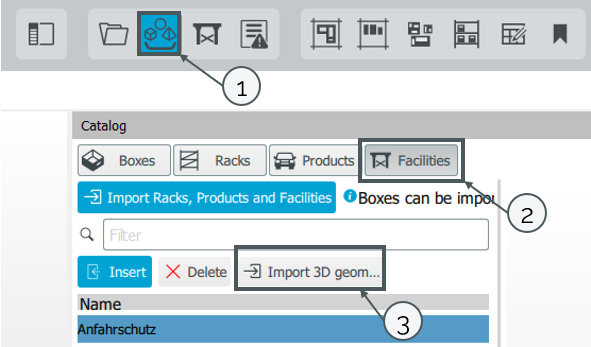
Certain file types can be imported via the Catalog. For this purpose, the Catalog is called up (1) and the Facility tab is opened (2).
Clicking on the "Import" button (3) opens a dialog for importing new facilities.
The following file types can be imported in this way:
- *.iv
- *.obj
- *.wrl
- *.ply
- *.jt
- *.fbx
- *.dgn
- *.dwg
Plugins:
CAD Import/Export
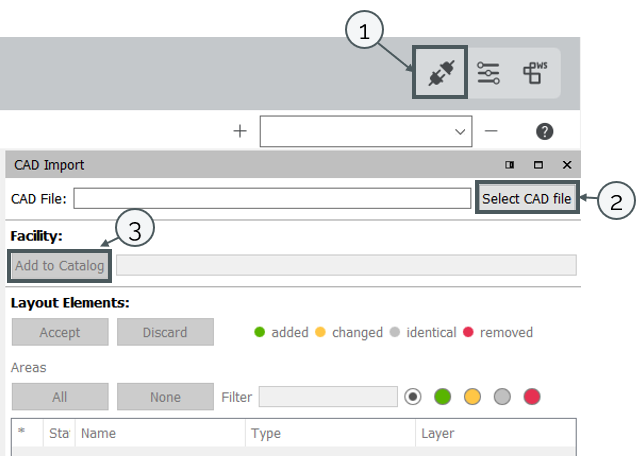
The CAD Import/Export plugin can be used to generate facilities that are available in a DWG or DGN format (in 2D format).
For this purpose, the CAD Import/Export Plugin is opened (1) and a corresponding file is selected via a dialog (2). Via "create" (3) a facility is generated from this CAD file, which is then created in the catalog.
Further information can be found in the Plugins section.
Insert Facilities
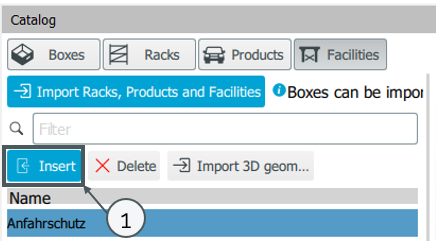
Facilities can be inserted into the layout in the catalog via "insert" (1)
Manage Facilities
In the submodule "Facilities" (1) all already inserted facilities can be managed.
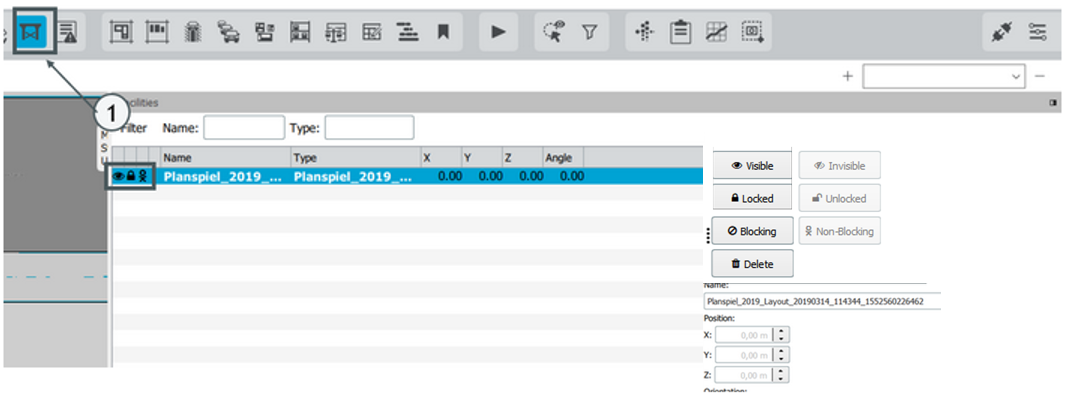
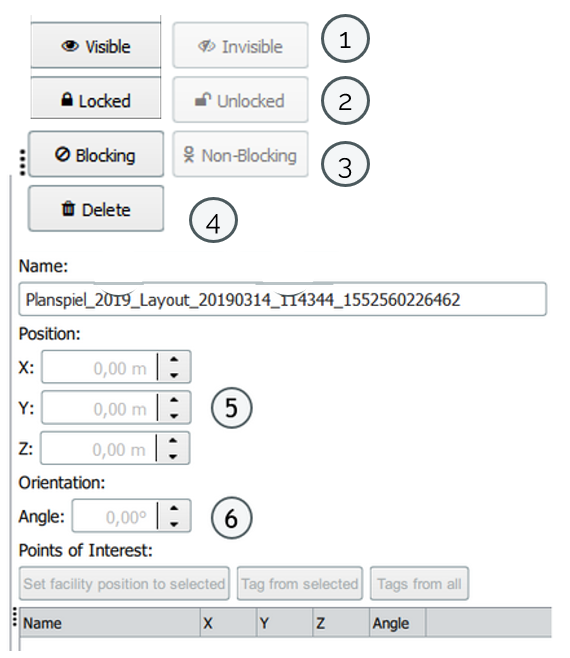
| 1 | Changes the visibility of the selected facility |
| 2 | Allows to move the selected facility in the layout editor |
| 3 | Declares the selected facility as "blocking" or "non-blocking "*. |
| 4 | Deletes the selected facility from the model (the facility remains in the catalog) |
| 5 | Positioning a facility by entering coordinates |
| 6 | Rotation of a facility by entering an angle |
| *Note to 3: Facilities that are marked as blocking are taken into account in material hiring and worker routing calculations. |