
- Define ACS point in MicroStation original file
- Select area for export to ipolog
- Draw a fence around the area (incl. ACS) that is to be imported
- Shortcut 2-1 “Place fence”
- Export fence content via 2-5 “Copy fence content to new file” with the following settings:
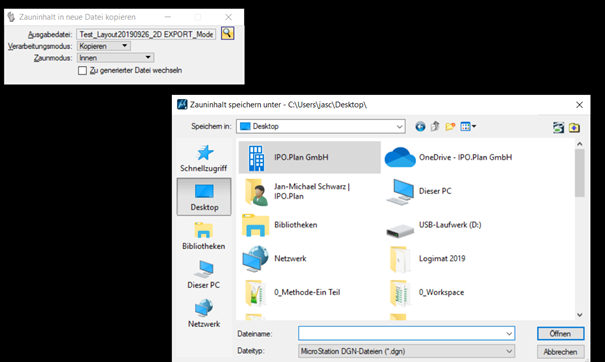
- Convert file to 2D
- Export – 2D
- Save as DGN
- Re-open 2D DGN
-
Save as DWG
-
Save as – select dwg
-
Import DWG via PlugIn
-
If layout levels are defined, the additional file (JSN file) should be used to perform the import automatically and the lines/surfaces are automatically imported as material areas. To do this, the planes on which the material areas are located must be known.
-
Reopen the file from step 3 (file created with the fence from the original file):
-
Export – JT
-
Activate "Export 2D Elements" in the JT Options:
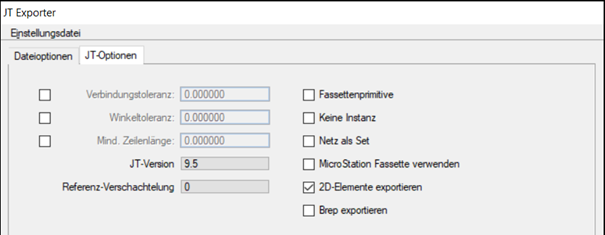 7. Run IPO JT Tool in Workspace installation folder
 -
File – Open JT File
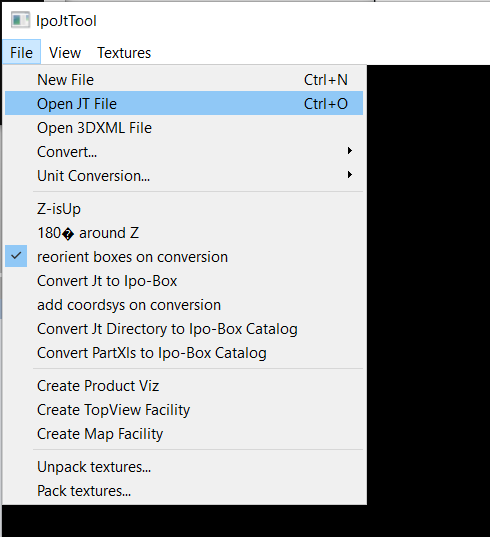 8. After loading:
 -
Textures – create top texture
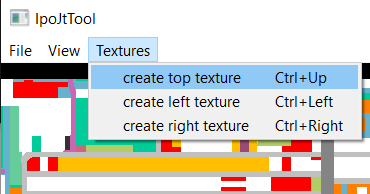 9. File – Create TopView Facility
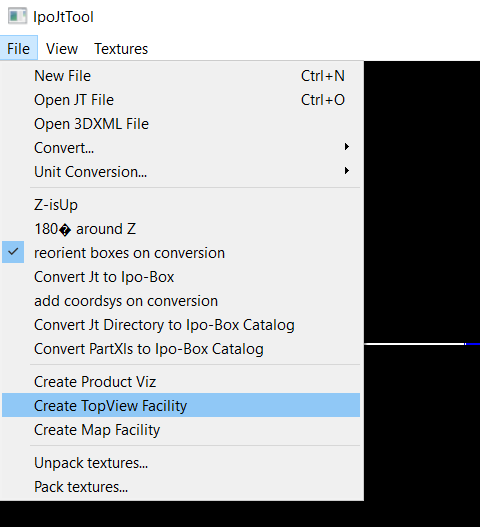 10. Put .jt-file, as well as .png in "facilities" folder
If the result is not satisfactory:
Open the exported file from step 3 in MicroStation
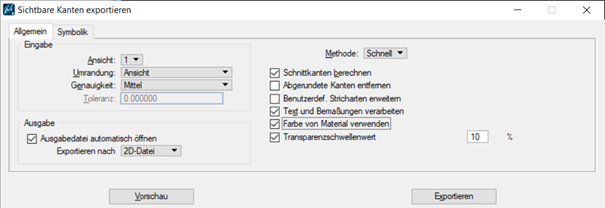
File - Export - Visible edges -> Set dialog as follows: