

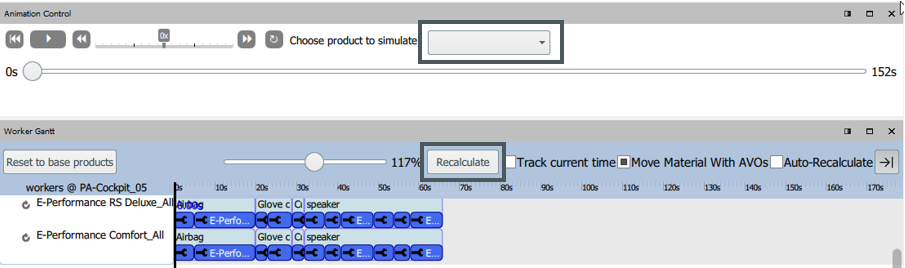
The Worker Gantt offers the possibility to balance the workload of the workers in order to use them efficiently within the cycle time.
To start the simulation, either press the Recalculate button in the Worker Gantt or select a product in the Animation Control submodule.
control element explained:
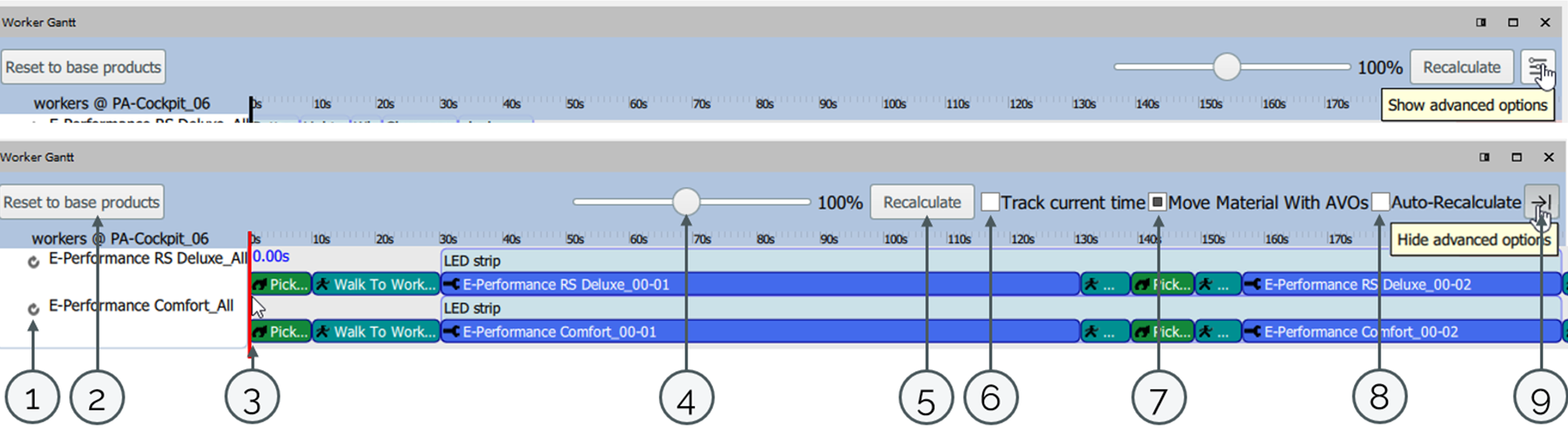
| 1 | Recalculate Worker | Recalculates the desired worker. |
| 2 | Reset to base product | Returns the selection of the product in the Gantt to the base product. |
| 3 | time marker | The time indicator runs along and can also be moved manually. |
| 4 | Zoom-Adjust | Mit dem Regler kann der Zoom in das Gantt angepasst werden. |
| 5 | Recalculate | Worker paths are reloaded. |
| 6 | Track current time | If this option is checked, the Worker Gantt moves synchronously to the animation. |
| 7 | Move activities in other products | If this is activated, AVOs can be moved from one product to another. |
| 8 | Auto-Recalculate | If this checkbox is set, the paths are recalculated after each porcess change. |
| 9 | Show/Hide advanced options | Opens / closes the menu. |
The meaning of the symbols:
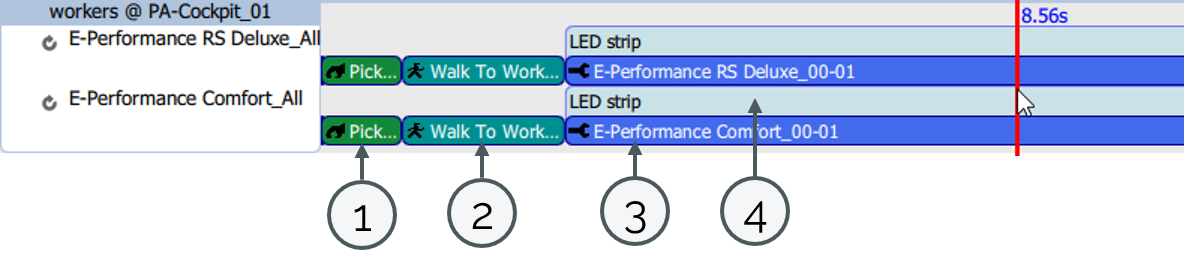
| 1 | PickOperation | Picking of materials |
| 2 | WalkOperation | Route to the next AVO or to the material pickpoint |
| 3 | AssemblyOperation | Single Operation (AVO) |
| 4 | OperationGroup | Process group |
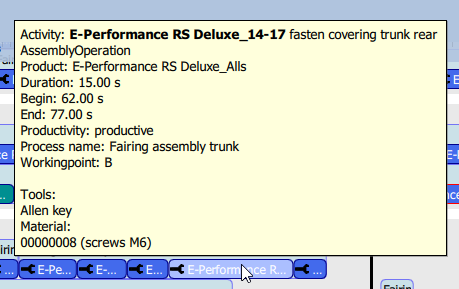
If the mouse pointer rests on a process group or AVO, a tooltip appears with information on the duration, the material used, the working point, etc.