

Since ipolog version 4.5.0, it is possible to filter material in a planning area (formerly “scenario”) horizontally, i.e. to divide it into several planning areas in a scenario (formerly “planning area”). This is done by assigning material to material areas or stations.
Please note: You can only work with material in your planning space if it has been assigned to a material area or station. Unassigned material does not arrive in your planning space.
First edit the selected planning area. The editor opens:
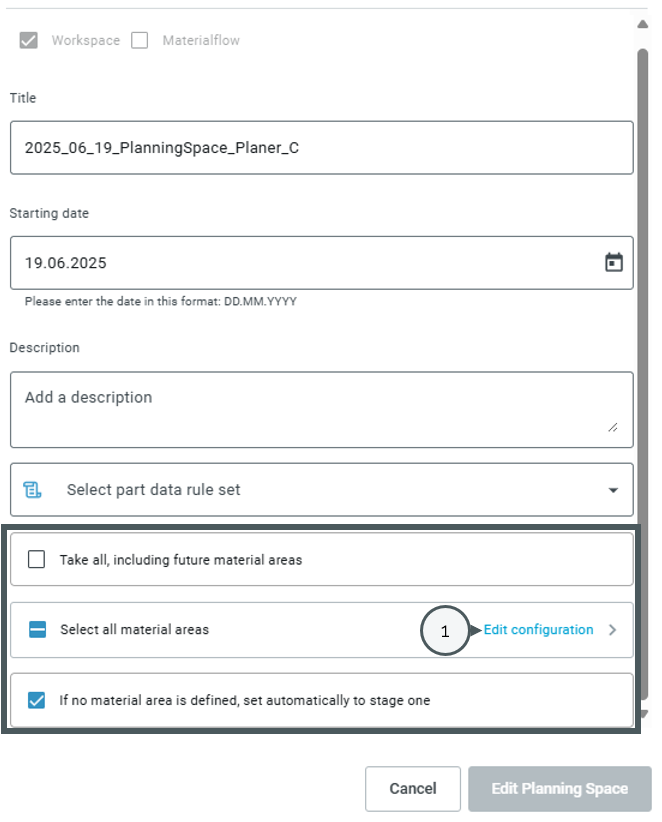
The last three options in the editor revolve around the assignment of material via the selection of stations or material areas:
- “Take all, including future material areas” categorically synchronizes every material with the selected planning space.
- You can also use “Select all material areas” to manually synchronize all currently stored part data with the planning area. “Edit configuration” [1] allows you to customize the selection of material areas:
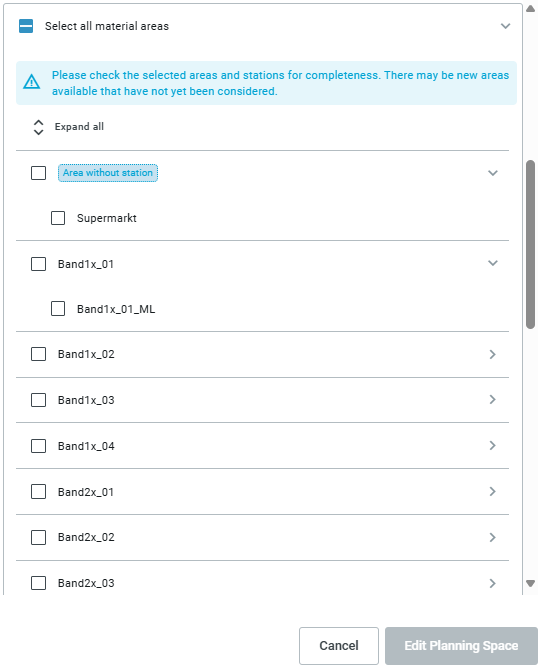
The “Arrow” symbol expands the list of material areas assigned to the stations so they can be selected individually. - "If no material area is defined, automatically set to stage 1" sets all parts to which no material area has been assigned to "Stage 1" in the part data. More about this here: Part data.
Placement logic
The placement of assigned material works as follows:
- If a material area has been defined, the material is placed on the corresponding material area
- If the material area is not defined or the assigned material area does not exist, but a station has been assigned and exists, the material is assigned to the reservoir area
- If the assigned material area does not exist and no station has been set, the material is assigned to the reservoir area
- If the material area is not defined and no station has been assigned, the material is assigned to the reservoir area
- If the material has been assigned to a material area in several stages, it also appears on the material area several times
- If the material has been assigned to different material areas in several stages, it will appear on each assigned material area