
Installation
Before you can use the Factory Viewer, components that enable the use of Factory Viewer first need to be installed. Here is how:
1. First navigate to the "Release Downloads" tab in the ipolog portal:
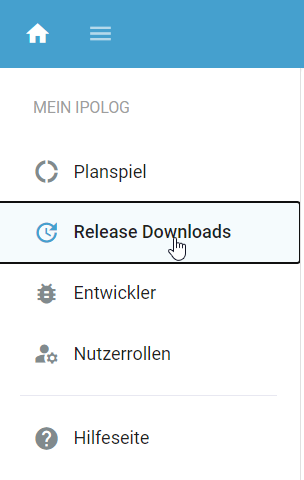
2. Download the file "ipolog 4 Factory Viewer Prerequisites (Setup)":

Select “Show actions” and then “Download”.
3. Open the downloaded file and follow the instructions on the screen.
4. Download the Factory Viewer:
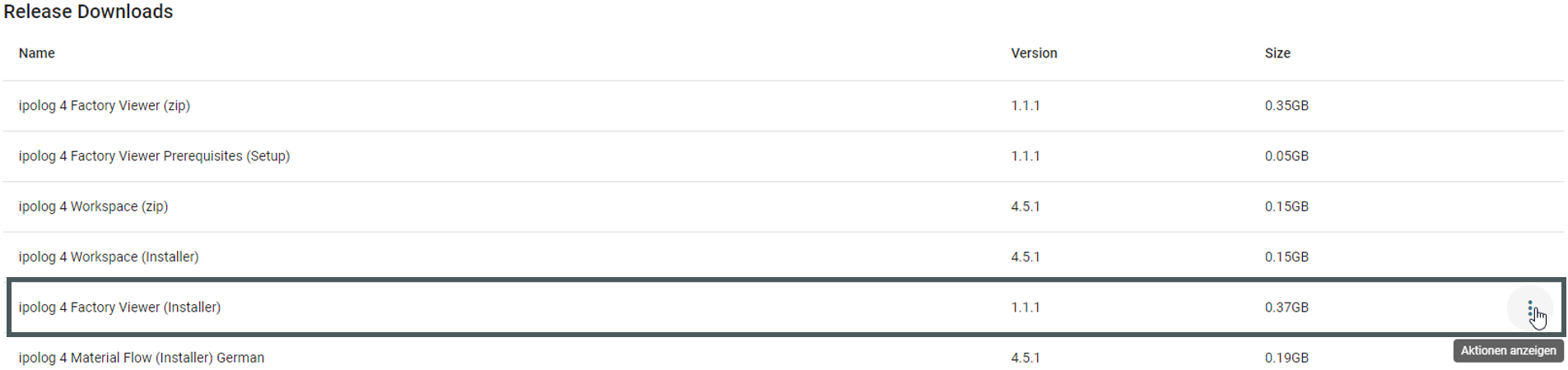
As an installer.

Or as a zip file.
5.1 (If the installer was selected) Start the installer:
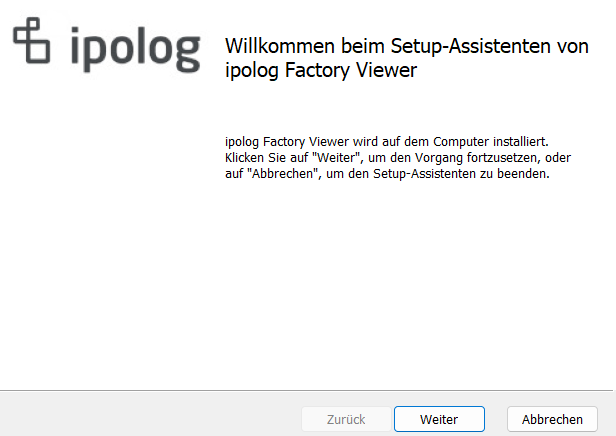
Follow the instructions on the screen. Install ipolog Factory Viewer to your preferred file path:
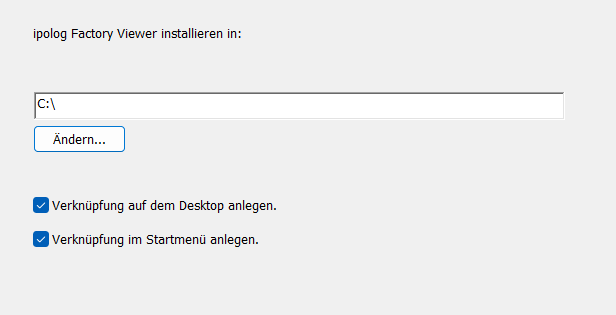
5.2 (If the zip file was selected) Unzip the ZIP file:
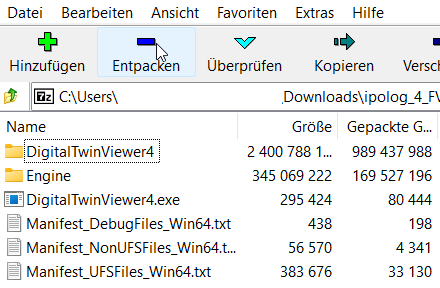
After the ZIP file has been downloaded, unzip it to the desired file path. (Depending on the program, the "Unzip" interface may vary).
6. Start the ipolog Factory Viewer.
Linking your project
To link the Factory Viewer to your project, an adjustment of the settings in Workspace is required:
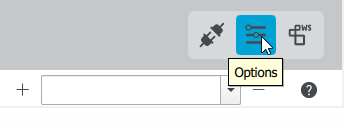
- Open your project and select the settings in the top right corner of the program:
- Open the "Factory Viewer" tab:
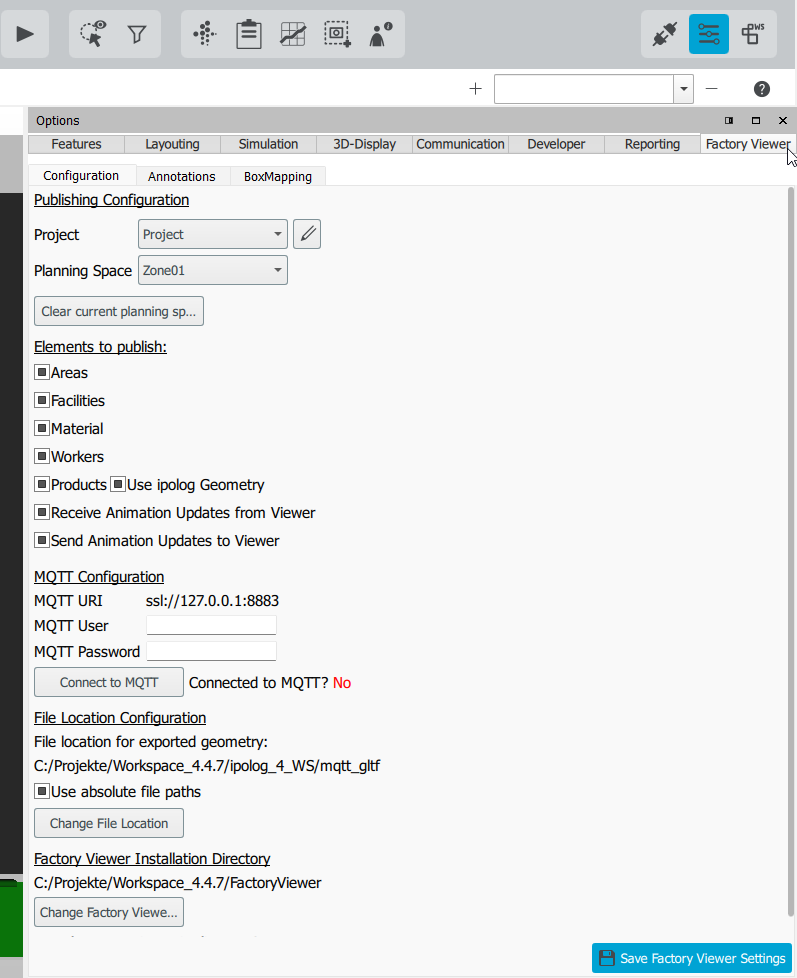
- In Workspace, under "Elements to publish", select which elements of your project should be displayed in Factory Viewer:
- Navigate to the bottom, click on "Change Factory Viewer Installation Directory" and select the folder in which you have unpacked the Factory Viewer - or more precisely in which the "DigitalTwinViewer4.exe" file is located:
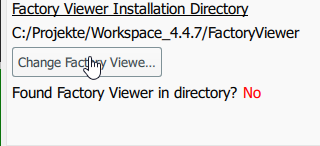
- If Factory Viewer was found, a green "Yes" will be displayed:
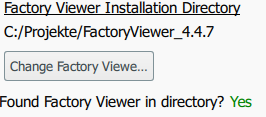
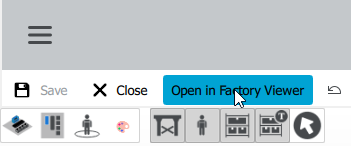
- Factory Viewer is now linked to your project and can be started via the "Open in Factory Viewer" button: