
Adding racks to a scenario
To create a new scenario, open a project and select the corresponding “+ Create scenario” button:

A planning state can be selected for each common data under “Import resources”:
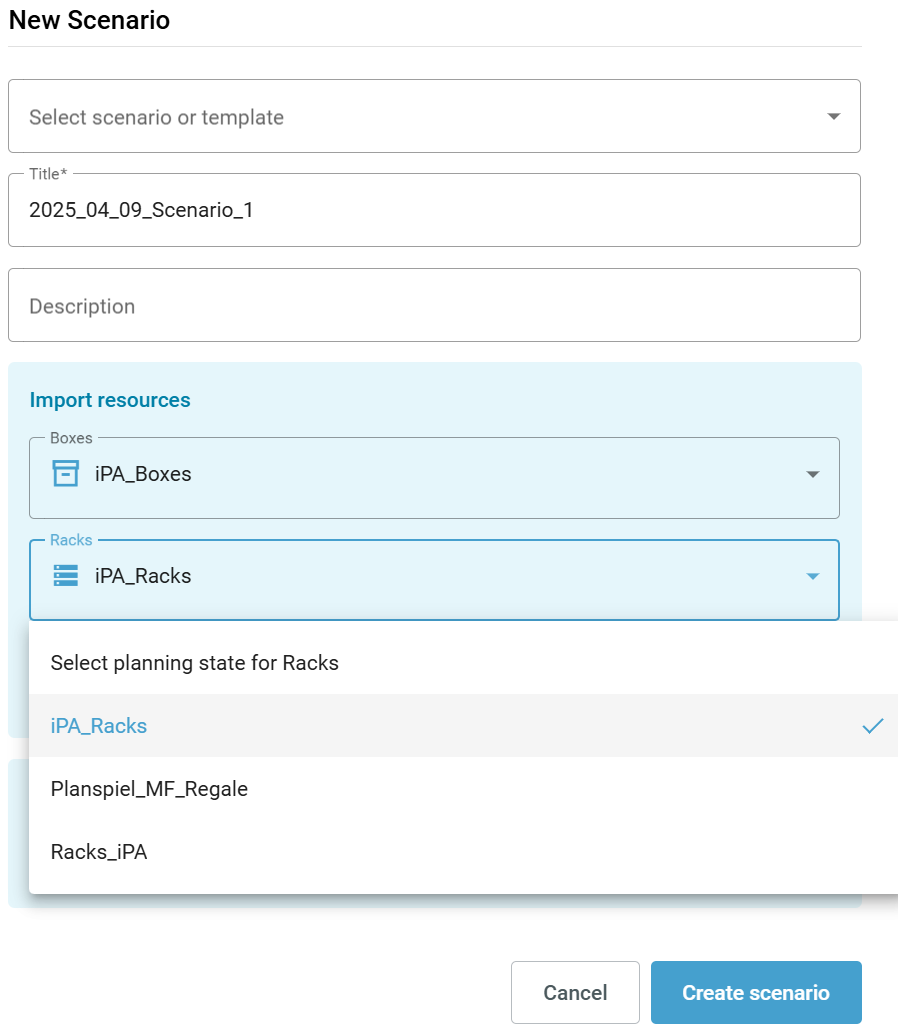
These can also be adjusted again later when editing a scenario.
Edit racks / common data and use them in an existing scenario
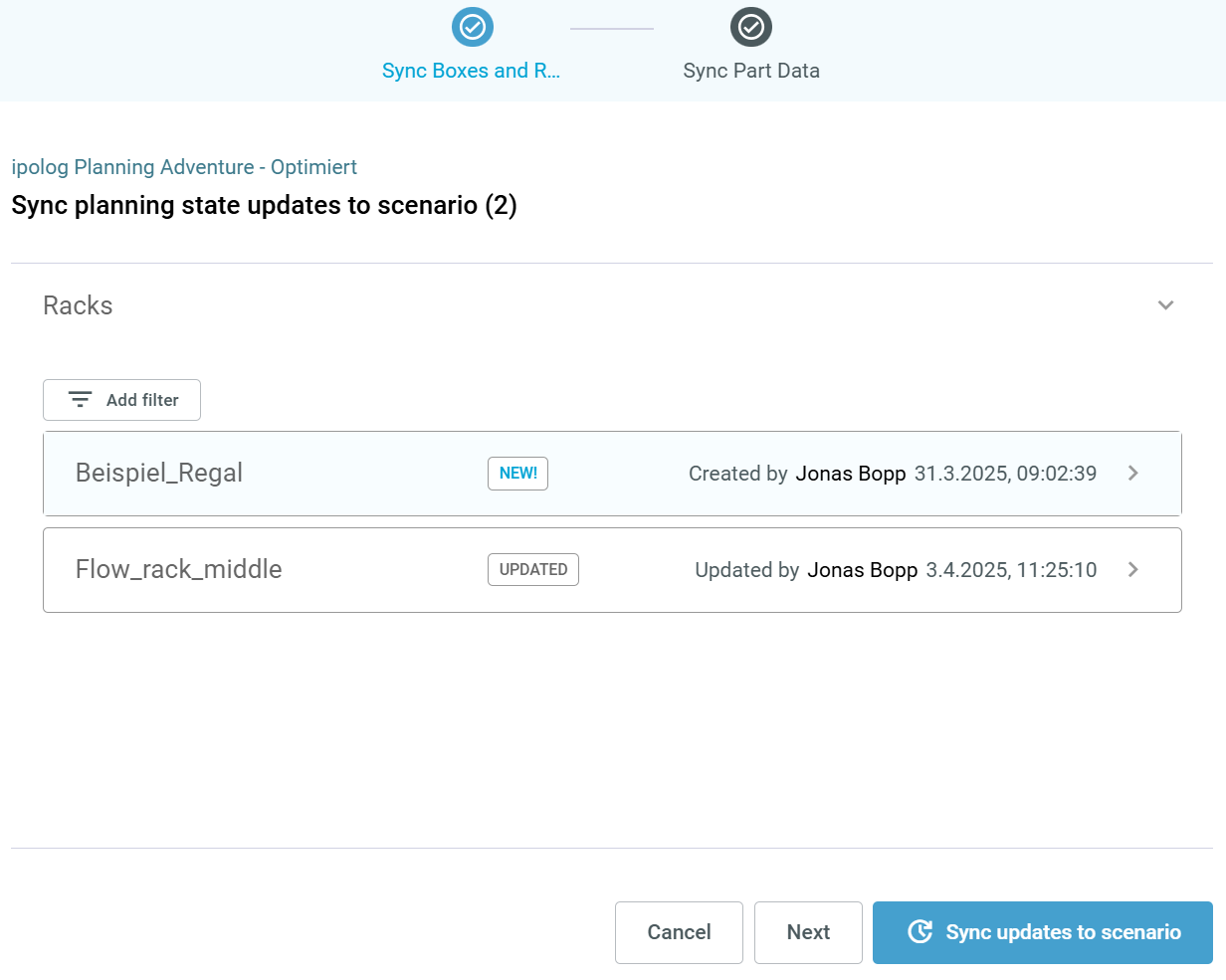
If new racks have been added or existing ones modified, the changes must be updated via “Pending Changes”. A message is displayed when you open a planning space in the linked scenario:
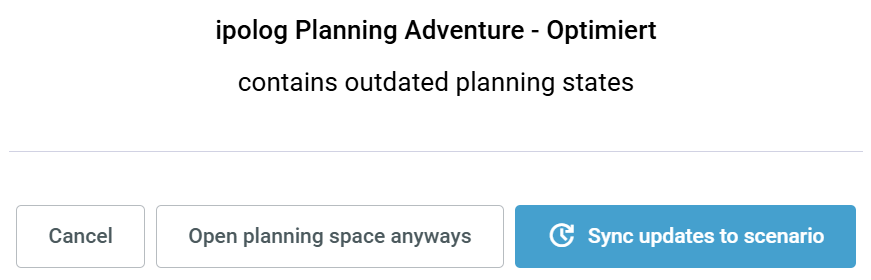
Select “Cancel” to end the process; “Open planning space anyways” to open the selected planning area WITHOUT synchronizing and “Sync updates to scenario” to synchronize the changes to the higher-level scenario first.
In the next step, you can also synchronize the changes to the planning space: