

Once you have created part data and stored it in your scenario, you can use the scenario part data state to check the use of the part data in your planning spaces. This is constantly updated by updates from the planning spaces and thus guarantees the common database between WS and MF.
Please note: The scenario part data differs from the linked part data planning state!
Procedure
Once the part data has been created and (optionally) divided up among the planning spaces using the ruleset, you can use the scenario part data in the planning space view to view the part data linked in the scenario:
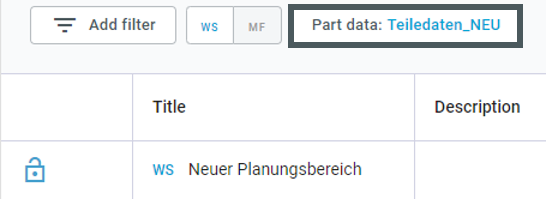
A window opens in which all part data stored in the scenario is listed. Via "Check usage in planning spaces", you can see exactly which part data has been assigned to which planning spaces:
Teiledaten_Shortcut_Ruleset2_eng.png
Select whether you want to view the Workspace (WS) or Material Flow (MF) planning spaces:
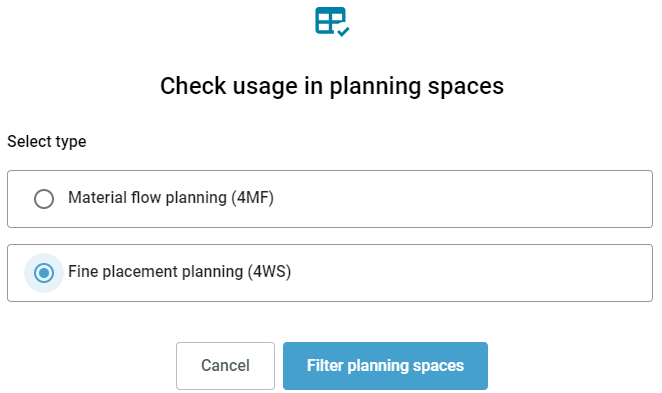
You will then only be shown the part data that is stored in the corresponding program - here: Workspace.
You can use the planning filter to see exactly which part data is stored in which planning areas:
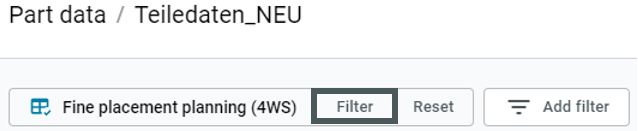
You can then filter according to the planning spaces:
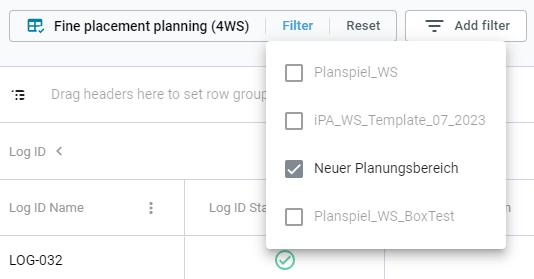
Filtering for the current planning space "Neuer Planungsbereich" shows us the filtered part data used in only this planning space.
Filtering displayed part data
In addition to the planning space filter, the displayed part data can also be filtered according to various criteria - in the same way as in the common data. To do this, first select "Add filter" after clicking on the part data shortcut:
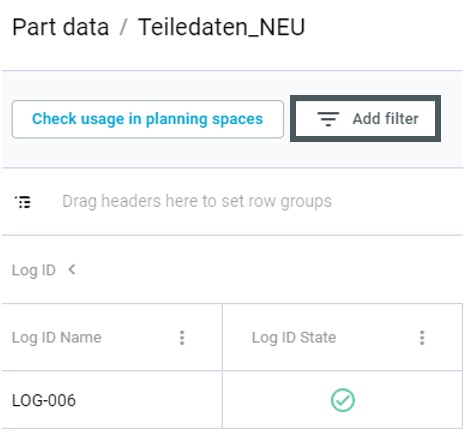
This allows you to filter your part data in the same way as the filter in the common data works.