

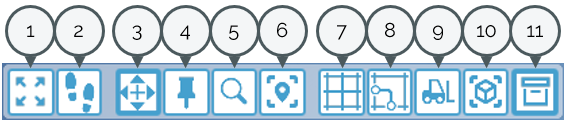
All functions necessary to work with ipolog Factory Viewer are displayed in the module bar. If you move the cursor over an icon, the name of the module is displayed.
-
View from top changes the current view to a bird's eye view, which shows you the entire planning area from above.
-
toggles between Walk Mode and Fly Mode. In fly mode, you can move freely through your project. In Walk Mode, you must first select a point in your project from which you want to start. The height selection and the toggle to return to fly mode thus appear in the module bar:

Fly mode is selected by default.
-
& 4. switches back and forth between View Mode and Annotation Mode. In view mode, you can move freely through your project - depending on which mode you selected at [2]. The Annotation Mode offers the possibility to make notes on individual elements - such as areas, workers or even shelves.
-
Toggle Quicksearch allows you to search and find all elements contained in the project:
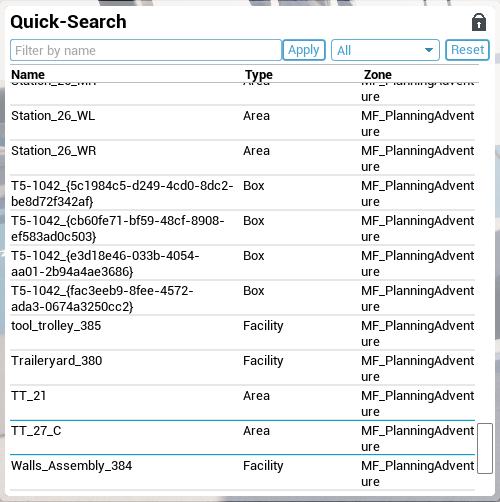
These can be searched for either by name or type.
-
Toggle Viewpoint List opens or closes the list of viewpoints you have saved in your Factory Viewer planning space. Further information here: Viewpoints.
-
Show/Hide Transport Network shows or hides the previously defined transport network in your project.
8. Show/Hide Transport Routes shows or hides the previously defined transport routes through your project.
-
Show/hide Transport Activity Indicators shows or hides the transport route usage.
-
Show/hide Box Volume on Areas shows or hides the display of the load on individual areas based on the box volume level.
-
Enable/Disable Box Volume Charts shows you the utilization diagram for the container volume. To activate this option, the “Show Box Volume on Areas” option must be selected in ipolog 4 Material Flow during import.