

2D View
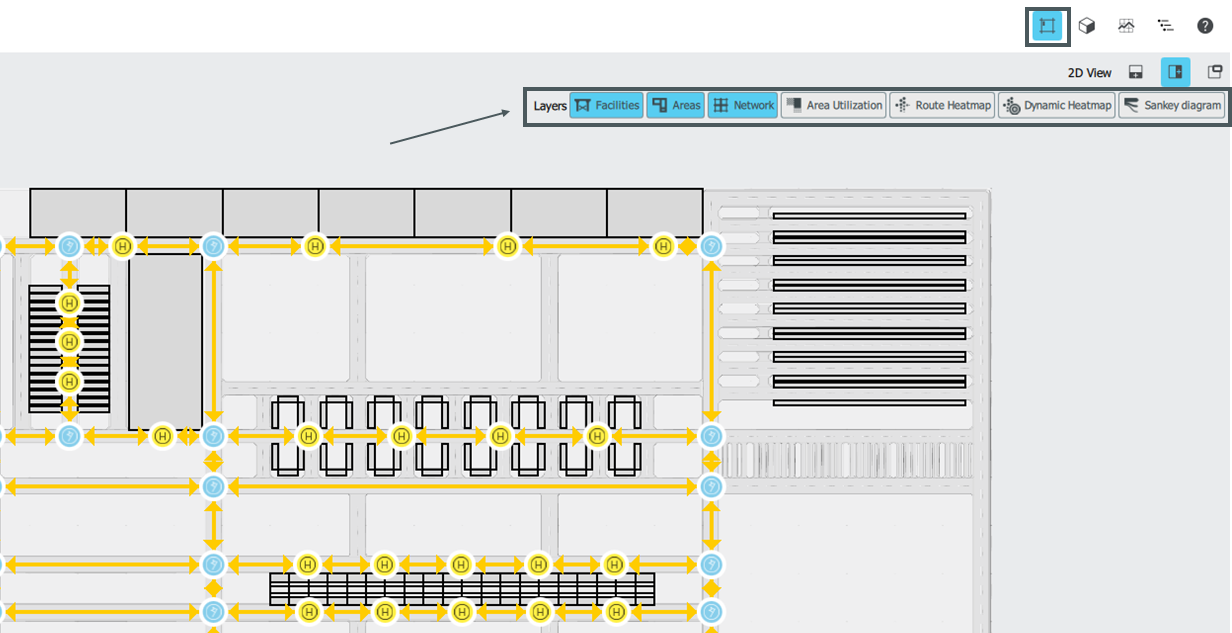
Zooming in this view takes place normally via the mouse wheel. The mouse wheel is used to zoom to the point that is focused with the mouse. You can move it by holding down the left mouse button and moving the mouse at the same time.
In the 2D view different layers can be faded in and out. The seven different layers are highlighted in the screenshot of the 2D view by the lower grey box.
In the example, the blue layers (surfaces, facilities and path network) are currently activated.
The views Area Utilization, Route Heatmap, Dynamic Heatmap and Sankey Diagram only contain data once the input variables for these levels have been defined.
3D View
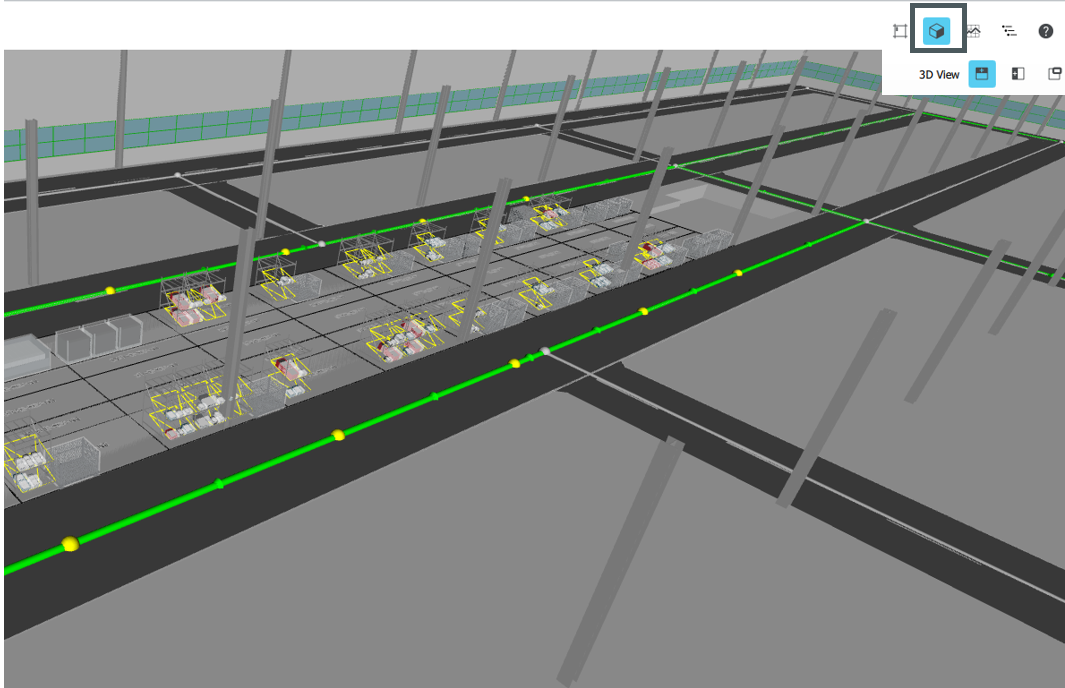
Zooming in the 3D view is the same as in the 2D view using the mouse wheel. Also here this area is focused again, which is focused by the mouse.
By double-clicking on a container, for example, it will be focused directly.
You can move this view by holding down the right mouse button and moving the mouse.
By holding down the left mouse button in connection with moving the mouse it is possible to change the viewing angle.